
 OnceHub
 ScheduleOnce

Sending one-time links using OnceHub for Gmail
The OnceHub for Gmail extension enables you to schedule meetings directly from your Gmail account. OnceHub for Gmail gives you instant access to all of your booking links without the need to change apps.
In this article, you’ll learn about sending one-time Personalized links using OnceHub for Gmail.
Understanding one-time links
Section titled “Understanding one-time links”One-time links are good for one booking only, eliminating any chance of unwanted repeat bookings. One-time links can be personalized, allowing the Customer to pick a time and schedule without having to fill out the Booking form.
When you create a one-time link using OnceHub for Gmail, the Customer’s name and email address is automatically taken from the email. When the Customer uses the Personalized link to schedule a meeting, they only need to choose a date and time, then confirm the meeting. The Booking form is skipped and they will not have to provide their name and email address.
Requirements
Section titled “Requirements”To send one-time links using OnceHub for Gmail, you must:
- Install OnceHub for Gmail.
- Have a scheduled meetings User license.
- Have an active booking link on your OnceHub account
Sending one-time links using OnceHub for Gmail
Section titled “Sending one-time links using OnceHub for Gmail”-
Sign in to your Gmail account.
-
Open the email editor.
-
Click the OnceHub for Gmail icon (Figure 1).
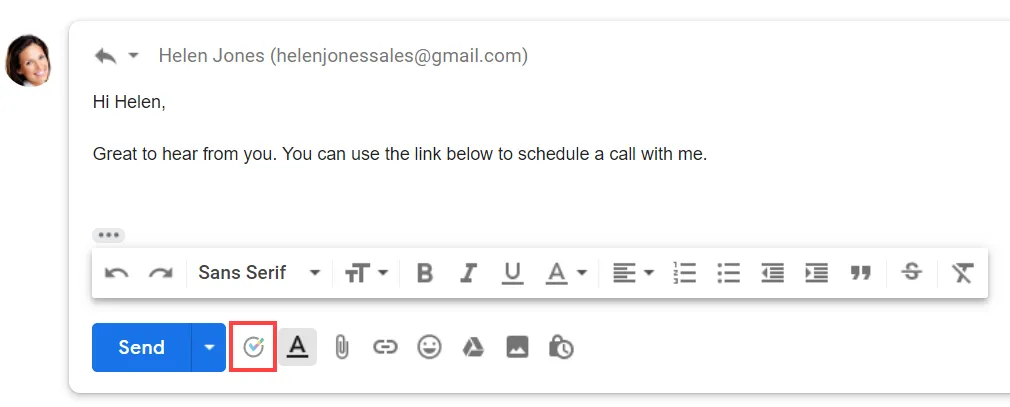
Figure 1: OnceHub for Gmail icon
-
The OnceHub for Gmail extension window will open (Figure 2).
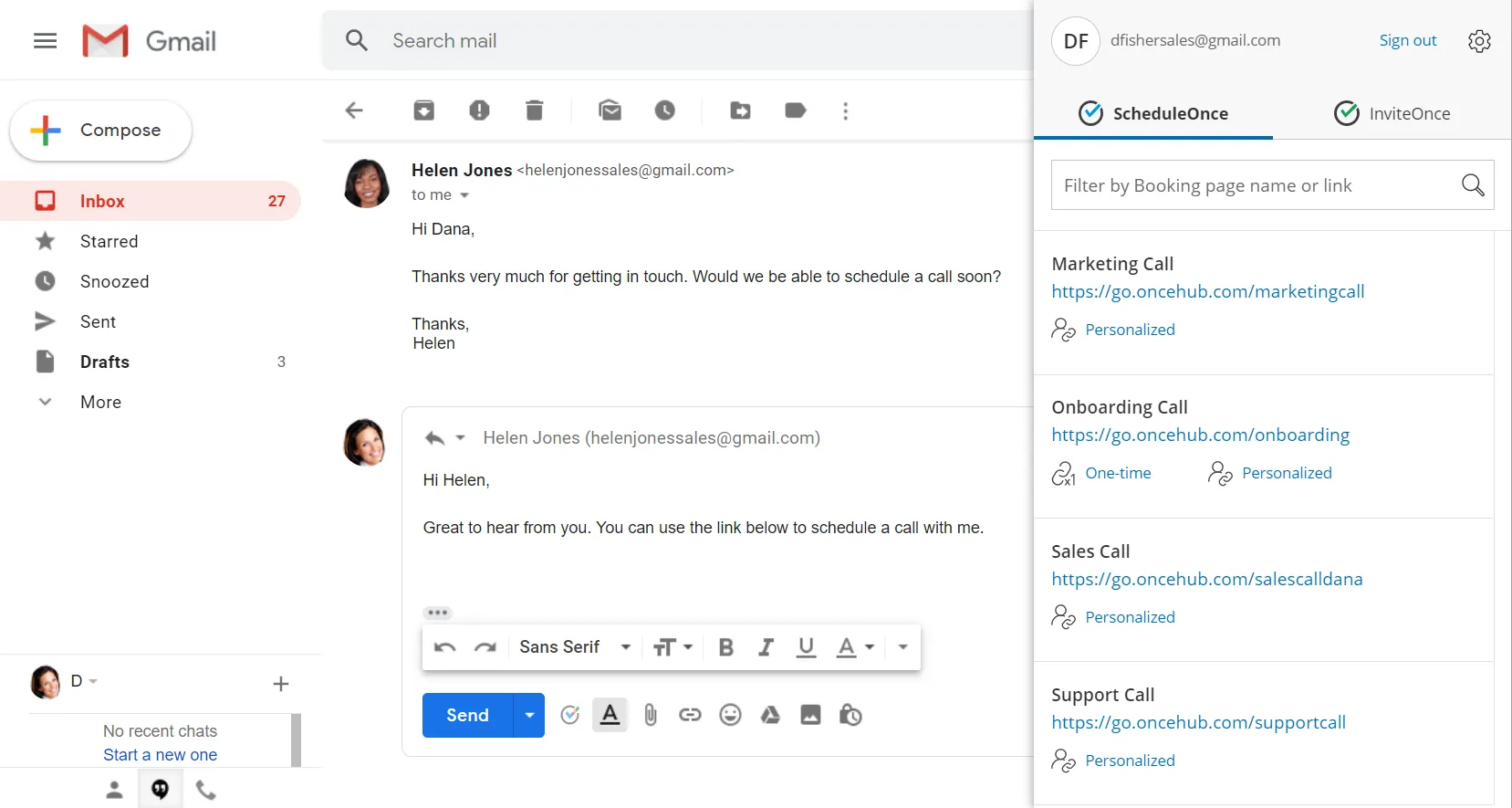
Figure 2: OnceHub for Gmail extension window
-
Click One-time next to the booking link you want to share.
-
You will see the Copied confirmation when the link has been generated and copied to your clipboard.
-
Paste the one-time link into your email.
When composing a new email
Section titled “When composing a new email”-
Sign in to your Gmail account.
-
Click Compose to create a new email.
-
In the To field, enter the email address of the person you want to share your booking link with.
-
Click the OnceHub for Gmail icon (Figure 9).
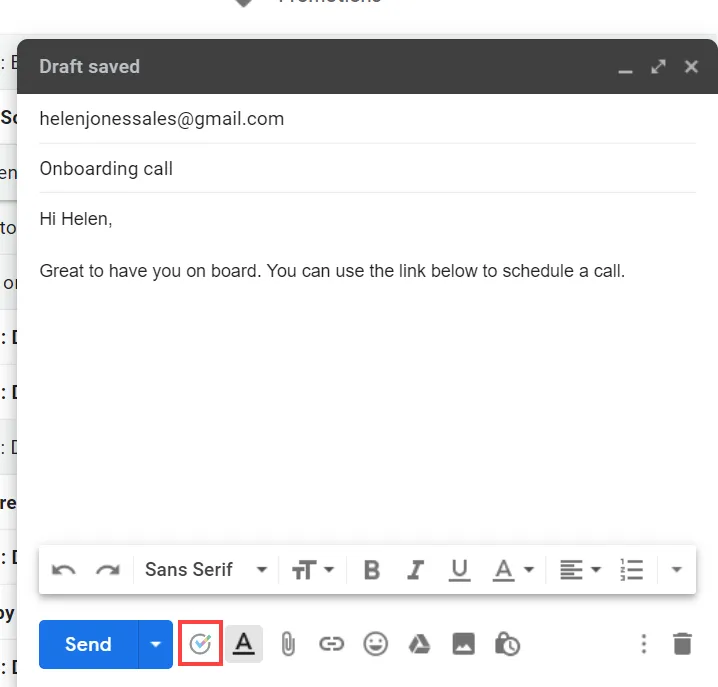
Figure 9: OnceHub for Gmail icon
-
The OnceHub for Gmail extension window will open.
-
Click Personalized next to the Booking link you want to share.
-
You will see the Copied confirmation when the link has been generated and copied to your clipboard.
-
Paste the one-time link into your email.